Affiliate links on Android Authority may earn us a commission.Learn more.
Build your own Action for Google Assistant
June 11, 2025
If you’ve ever chatted with aGoogle Assistant speaker, you might know how frustrating it is to be told “I’m sorry, I don’t know how to help with that yet.” Luckily you don’t have to wait for someone to implement a missing feature — you can do it yourself! Google has an entire platform dedicated to helping you extend the functionality ofGoogle Assistantby defining custom Actions.
Related:Google Assistant routines
Before you get going, you’ll want to check out the Google AssistantActions directory, since there’s a reasonable chance that someone’s already addressed your needs. You might still have a better or different implementation that makes sense.
Let’s look at how to build a complete Google Assistant Action. By the end of this article, you’ll have created an Action that asks the user various questions, parses their responses, and then extracts specific pieces of information, which it then uses to personalize the conversation and drive it forward.

What we’re going to build
We’ll be building a bad joke generator action that learns the user’s name, and finds out whether they want to hear a cheesy joke about dogs or cats.
When designing an Action, it’s a good idea to map out all the different routes the conversation can take, so here’s what we’ll be building:

Creating an Actions project and a Dialogflow agent
Every single Action requires the following:
To create these components:
Welcome the user to your Action
Every conversation has to start somewhere! Whenever you create a Dialogflow agent, aWelcomeintent is generated automatically, which represents the entry point into your Action.
You define how your Action responds to user input via Dialogflow intents. It can respond in two ways:
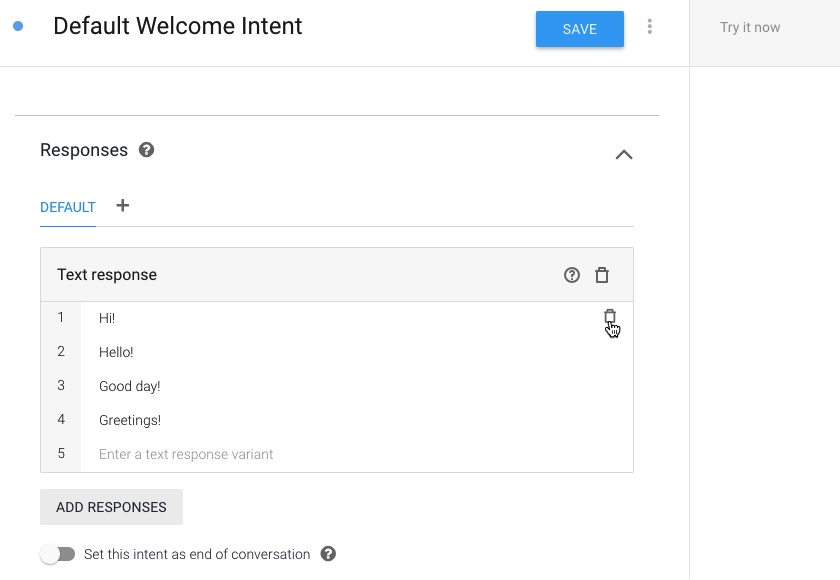
Your responses should guide the user on what to say next, so I’m going to welcome the user to our application, and then ask for their name. Since this is a static response, we can supply it as plain text:
Language training: Define your conversation’s grammar
Next, we need to make sure our Dialogflow agent can identify which part of the user’s response is the required name parameter. This means providing examples of all the different ways that someone might provide their name.
When it comes to understanding and processing language, Dialogflow’s natural learning understanding (NLU) engine does a lot of the heavy lifting, so you don’t have to list every potential response. However, the more training phrases you provide, the greater your chances of a successful match, so attempt to be as thorough as possible.

To train your agent:
By default, Dialogflow should recognize “John” as the required parameter, and assign it to the@sys.given-nameentity.
Repeat this process for variations on this phrase, such as “John is my name,” “I’m called John,” and “John Smith.”
If Dialogflow ever fails to assign@sys.given-nameto “John,” then you can create this assignment manually:
Create and deploy your webhook
Now that our agent can recognize the name parameter, let’s put this information to good use! you may address the user by name, by creating a Dialogflow webhook:
Next, create the webhook using Dialogflow’s Inline Editor:
In the above code, “name” refers to the parameter we defined in the intent editor.
Test your Action
you may put your project to the test, using the Actions Simulator:
Keep the conversation going with follow-up intents
Since we asked a question, we need to be able to handle the answer! Let’s create two follow-up intents to handle a “Yes” and “No” response:
You can now edit these intents. Let’s start with “no”:
Now we need to edit the “yes” intent:
Creating a custom entity
So far, we’ve stuck with Dialogflow’s ready-made system entities, such as@sys.given-name, but you may also create your own entities. Since there currently isn’t a@sys.cator@sys.dogentity, we’ll need to define them as custom entities:
Using your custom entities
You apply these custom entities to your intents, in exactly the same way as system-defined entities:
Unleash your best bad jokes!
Our final task is to start inflicting bad jokes on the user:
Repeat the above steps, to create your cat intent, and that’s all there is to it!
The only thing left to do is fire up the Actions Simulator and see how the Action handles the various responses.
Wrapping up
This Action may be straightforward, but it demonstrates many of the tasks you’ll perform over and over when creating your own Actions. you’re able to take these techniques for learning the user’s name, extracting parameters, delivering static and dynamic responses, and training your Dialogflow agents, and apply them to pretty much any Action project.
If you decide to develop Google Assistant Actions that do more than deliver a couple of bad jokes, share your work with others andsubmit your Action for approval!
Will you develop for the Actions directory? Let us know in the comments below!
Thank you for being part of our community. Read ourComment Policybefore posting.
