Affiliate links on Android Authority may earn us a commission.Learn more.
Shake it to wake it, Tasker gesture to wake display - Android customization
July 30, 2025
After ourAndroid customizationproject last week, creating our own Ambient Display feature for any phone, many of you asked if Tasker can handle other, more appropriate screen-on functions. As requested, let’s look at a simple method to useTaskerto wake your display.
There are more advanced tools in Tasker that will work better and reduce battery consumption, but let’s get through the basics first, using the simple gesture controls pre-recorded by Tasker. The idea is simple then, this project will allow you to wake your phone just by shaking it.
Related reading:
Before we begin
Please allow me to start by reiterating that warning, this project will work on most devices, but not all, and it requires that Tasker prevent your accelerometer from entering sleep mode. However, the newer Doze feature in Android Marshmallow and newer may still override this and put things to bed, in which case this project will stop working until you wake your device the old fashioned way, by calling it, or I guess just hitting that power button.
All that out of the way, take your newer Android device, ensure you’ve gotTasker installed, $2.99 in the Google Play Store, as well asSecure Settings, free in the Google Play Storewith in-app unlock-able content. Now let’s get started.
Shake your phone to wake the display
Tasker offers more than one way to read movement from your accelerometer and gyroscope, we will be utilizing the simplest of the offerings, allowing us to act upon ‘shakes’ side to side, forward and back or up and down.
We will also be overriding the recommended settings, allowing Tasker to keep track of your sensors while the display is turned off. This is a good way to eat up your battery in no time. I never said this project was perfect, but I’m always up for a learning experience, hope you are too.
Before we start building the normal Tasker Tasks and Profiles, hit that menu button in the top right and head intoPreferences.
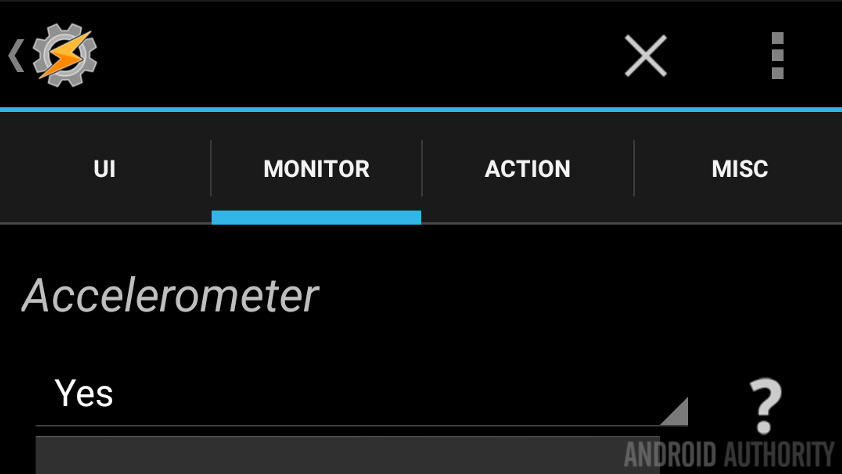
Tap into theMonitor taband scroll down, keep scrolling, you’ll findAccelerometerdown there. It probably has the option When Power Connected turned on, you will need to change this toYesor Yes, and keep Android Awake. Then say goodbye to your battery life!
Hint: At the bottom of this same Monitor tab is the Gesture and accelerometer calibration settings, you might prefer to look into that, particularly the Orientation State settings. It might have been smarter for me to build today’s project based on orientation state, but I think you can get more use out of the shake feature.
Settings in place, head into theTasks taband begin anew Task.
I’ll call my Task “ScreenOn“. Wait, didn’t we do that last week? Sure did,check it out here.
Tap the “+” button to ad your first action.
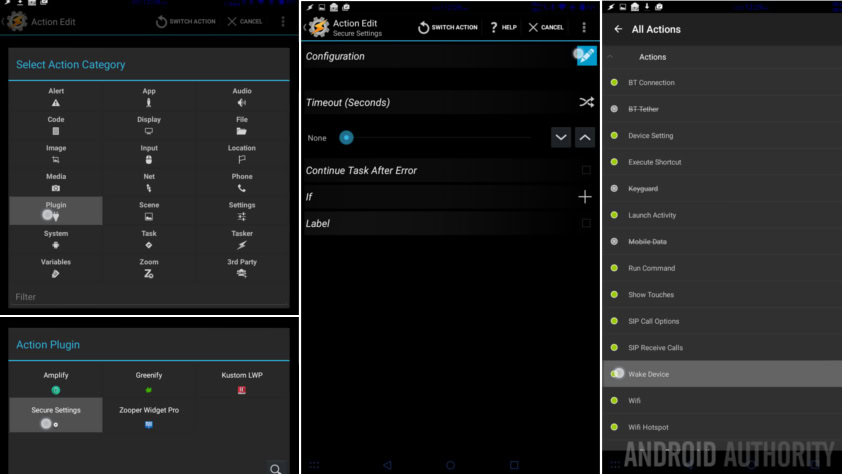
SelectPlugin.
SelectSecure Settings.
Tap the pencilConfigurationbutton.
ExpandActions.
SelectWake Device.
Change the Duration to an amount of time that makes sense for you. Remember your battery life, but also give yourself enough time to unlock your device and use it.
ClickSaveat the top.
Tap the systemBackbutton a couple times, we’re done with the Task, let’s now create the associated Profile.
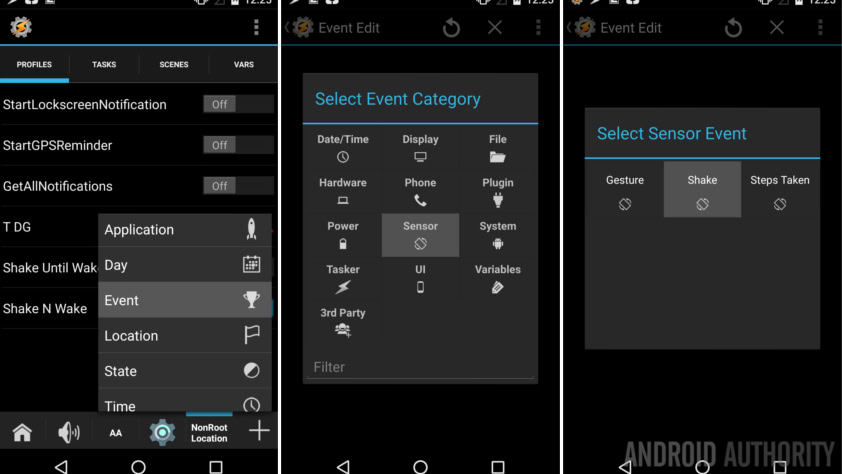
Head over to theProfiles taband start anew Profile.
SelectEvent.
SelectSensor.
SelectShake.
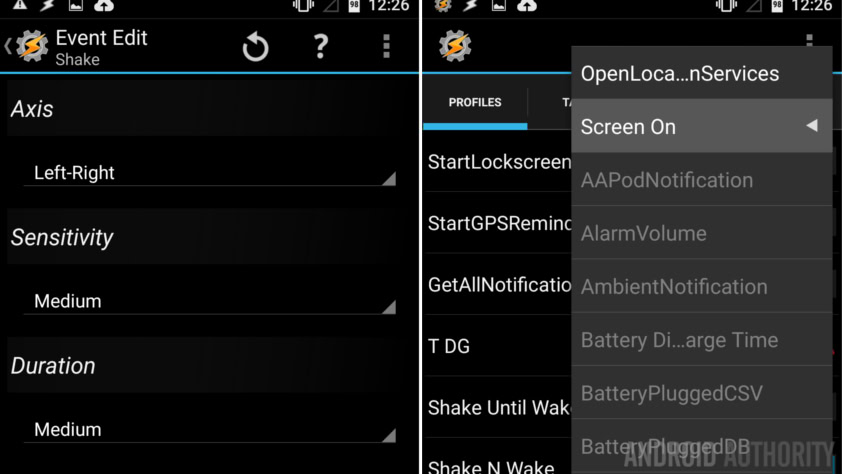
Your choice now, Left-Right is a chopping action, Up-Down is like shaking your friends soda can before they open it and Backwards-Forwards will make people think you are waving at them backwards. Choose anAxis, I’m going withLeft-Right, because my device does not already have a chop feature, does yours?
You are probably going to come back here later to edit the Sensitivity and Duration settings. Both of which control how hard it is to accidentally trigger the Shake gesture.
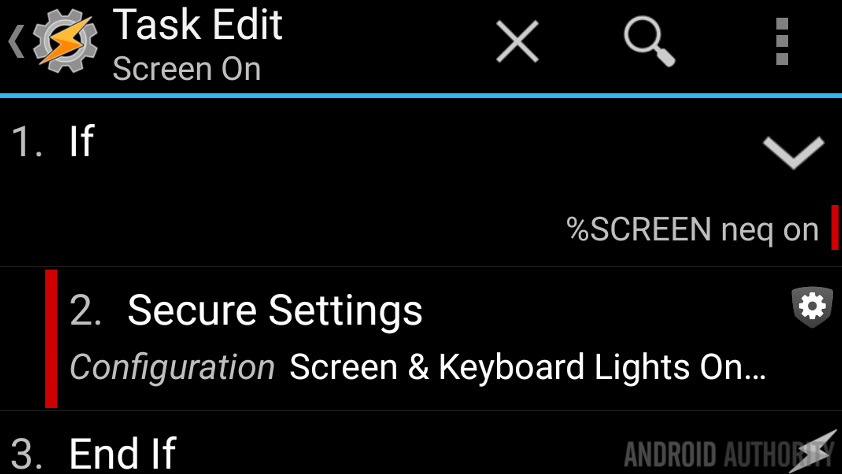
Tap the systemBackbutton to save.
Choose yourScreenOnTask from the list.
Turn off your display and start shaking your phone! Wow, slow down there choppy, a flick of the wrist should be enough.
What’s next
See what I did there? Encase the screen on action in an IF statement that makes sure the display is off before it fires. This should help clean up a few things as you go.
Allow me to bore you with this, but I have to say it again, I do not recommend this project the way it is. Now, go ahead and leave it up for a couple days, you may find that it has no tangible impact on your battery life, in which case, lucky you, enjoy your new toy. For the rest of us, having Tasker watch our sensors while the display is off is counter intuitive to Doze mode and better battery life practices.
You may find, however, that watching device orientation works better for you. This is a sensor that many devices will wake up for other uses anyway, in which case Tasker can piggy back off of that, read the sensor and perform an action with minimal battery interruption. Again, not bulletproof, but worth looking at.
Last, since we’re playing with turning on the display, don’t forget that Secure Settings has the ability to bypass your Lockscreen as well. Now we’re getting into the paid and root functionalities, but it was worth mentioning.
Admitting that this is a project I have revived from several years back, I hope that thisAndroid customizationto shake your phone awake brings value to your Tasker purchase. Next week is going to be tough, folks, I’ll either be playing with Android Wear again or getting back into root apps and tools. If you have a preference, be sure to let me know, otherwise, a surprise project is on its way.
If shake is not your thing, how do you use Tasker to turn on your device?
More Android customization projects:
Thank you for being part of our community. Read ourComment Policybefore posting.
