Affiliate links on Android Authority may earn us a commission.Learn more.
Tasker on your Android Wear smartwatch - Android customization
August 16, 2025
Continuing our coverage of Android Wear on ourAndroid customizationseries, we are excited to be talkingTaskerthis week. That’s right, we’re looking to give you the power of our favorite customization app right on your Android Wear smartwatch.
We are keeping things simple for now, providing just a few basic actions, and the implementation will prove, perhaps, not ideal for all uses, but it’s a start. Also, I’d like to keep your expectations in check, for this project, Tasker does not run on your watch itself, we are just using your Android Wear device as a remote for Tasker on your connected phone or tablet.
Before we begin
Is Tasker worth it? Check out these other projects:
Tasker on your Android Wear smartwatch
First things first, Tasker does not officially have an Android Wear app, there is no immediate and direct way to truly run Tasker on your smartwatch. However, there are third-party apps that can help, or, as we will do today, a few quick clicks and you can get actionable Tasker notifications to land on your watch.
As you may already know from our previous Tasker notification work, all we can really do today is fire off Tasker Tasks created on your phone or tablet, effectively turning your Android Wear device into little more than just a remote control for your phone. If that is enough for you, let’s get started.
Permissions
Before we can do any coding, we are going to need to set some permissions on your phone or tablet. By default, Tasker notifications do not pop up on your Android Wear device, but we can change that. We’ll be working on an Android 6.0.1 Marshmallow device, your instructions may differ slightly.
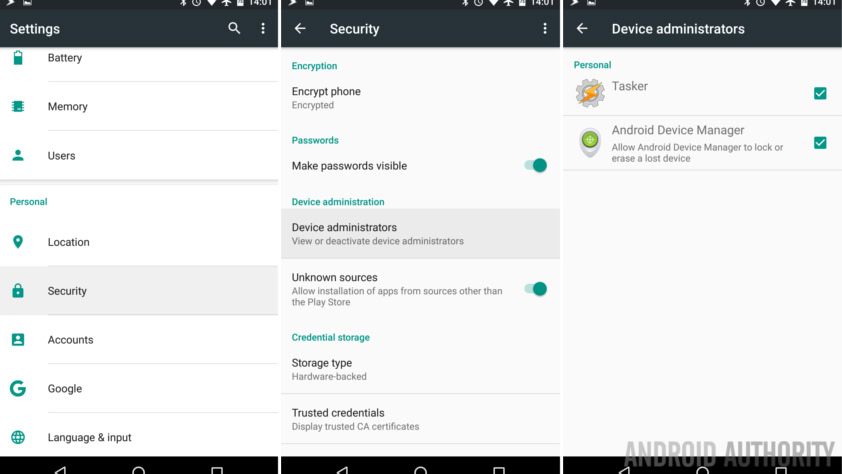
Head into your main systemSettings.
Go toSecurity.
Go toDevice administrators.
Ensure thatTasker has access turned on.
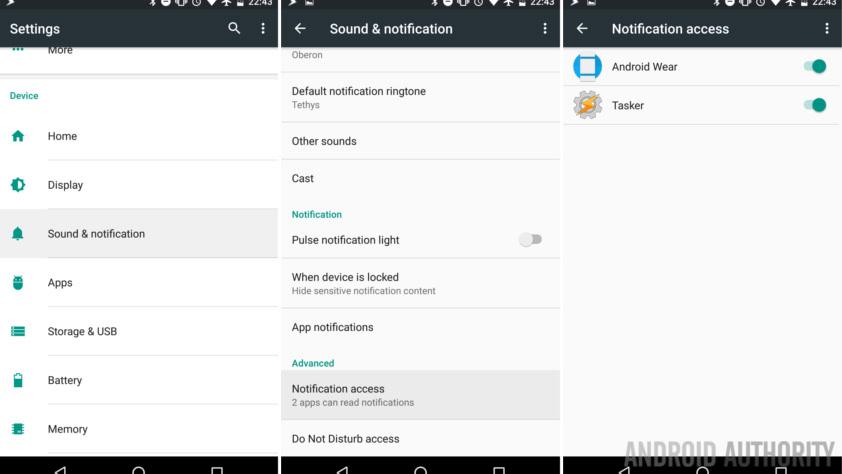
Now head back to your systemSettings.
Go toSound & notification.
Go toNotification Access.
Ensure thatboth Android Wear and Tasker are turned on.
Hit theBackbutton to return to Sound & notification settings.
Go toApp notifications.
I recommend turning on the option to treat both Android Wear and Tasker as priority. This may allow unintended notifications while in Do not disturb mode, but it was the option that made everything possible on my device.
So, what you are doing is finding and tapping onTasker.
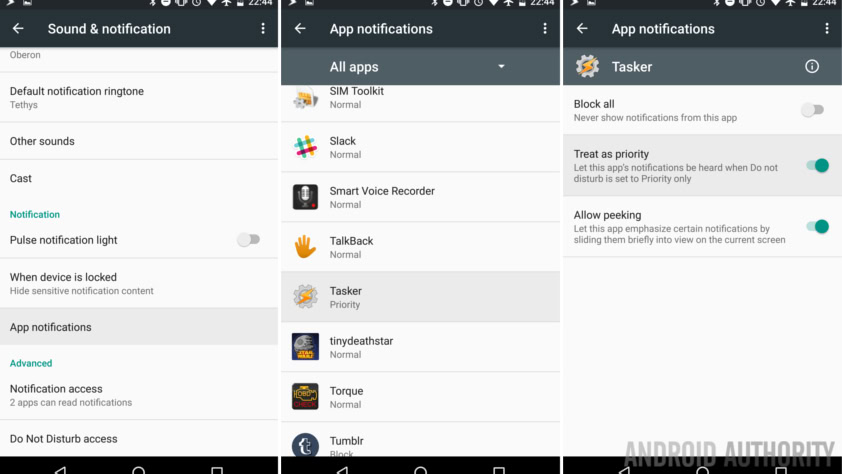
Turn on the optionTreat as priority.
That is all there is to the permissions. Now we can start making our Tasker project.
Tasker notifications
We have previously used the notifications tools in Tasker, I’ll leave you to go back to discover exactly what you are up to there, we’ll just outline the basics for you here today.
Open Taskerandstart a new Task.
Name your Task appropriately, I’ll call mine “WearTasks“.
Tap the “+” button to add an action.
SelectAlert.
SelectNotify. Note that you may also select Notify Vibrate, this will vibrate your phone and your watch, if that helps you out.
Provide a simple and informativeTitle, I’ve put “What would you like to do?”
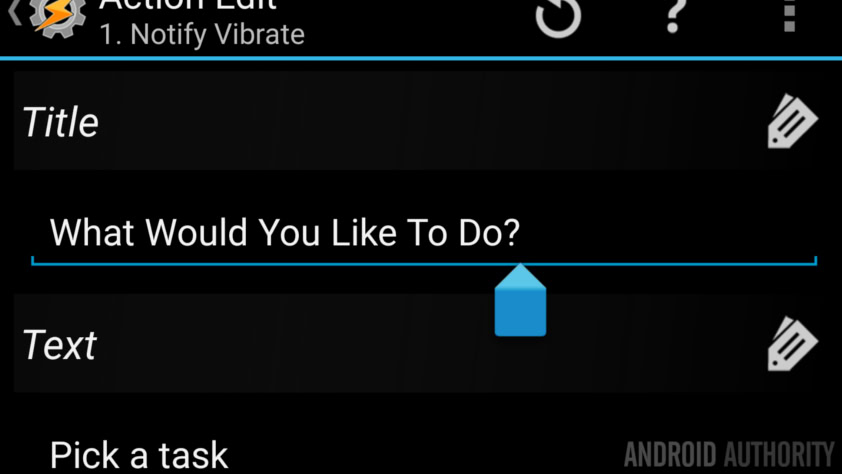
Provide a simple and informative note in theTextfield, this is optional, but I put “Pick a task.”
Go ahead andassign an icon, decide on your priority level and add a vibrate pattern, if applicable.
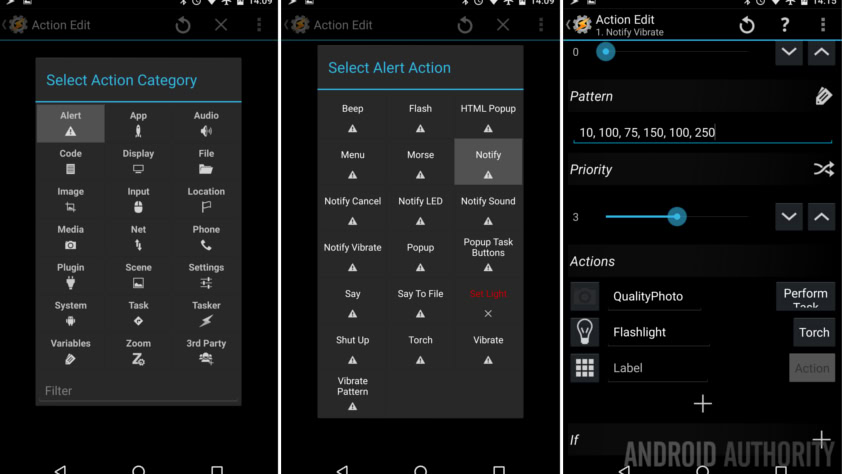
Under Actions, tap theAction buttonon the right to select or create your actions. you’re able to put three actions.
I chose to utilize three previously created Tasks, but you can create something new if you would like. To use previous Tasks, just chooseTask -> Perform Task, thenfind your Task.
Tap the icon button on the left if you’d like toadd an icon, I do recommend this.
That’s all there is to it, really. Go ahead and back out to the Task Edit screen, hit that Task Play button in the bottom left corner and see what happens.
How to start this notification
Don’t forget that you’ll want to find a creative and simple method of starting up this Tasker notification. At least I presume you do not want to have to come back here each time. I have opted to utilize Tasker’s main persistent notification to trigger this notification. This way I can always fire up the actions.
To do this, from themain screens of Taskertap the three-dotsmenu buttonin the top right.
Go to theMonitor tab.
Turn onNotification Action Buttons, if it isn’t already, thenadd your WearTasks Taskto the Actions list.
What’s next
This project requires that you use your phone or tablet to start this Tasker notification, only then can you jump over to your watch to run the Tasks. For now, you will need third-party apps or watchfaces to be able to start this exclusively from your watch. That said, if you have third party Tasker-capable apps or watchfaces installed, you are probably already using them to remotely control your connected Android device.
Remember that you may create Tasker Tasks that can run any number of other Tasks, if you need to do more than one thing with a single button on your watch, be sure to create a Task that includes all of the other Tasks you want to run.
We hope that this little project has satisfied your Tasker needs on your Android Wear device, at least a little bit. We plan to revisit the third-party Android Wear apps that work with Tasker in later Android customization posts, but next week we have something else in mind. We’ve been away from our rooted Nexus 7 for too long, let’s play with that next week, root tools incoming.
Have you found a better way to implement Tasker integration with your Android Wear device?
More Android customization projects:
Thank you for being part of our community. Read ourComment Policybefore posting.
