Affiliate links on Android Authority may earn us a commission.Learn more.
Windows Update not working? Try these possible fixes
June 04, 2025
Keeping Windows 10 up-to-date is an important part of your computer’s health. It’s the most-targeted operating system on the planet, requiring continuous updates to keep you safe and sane from unwanted crashes and crooks. Is Windows Update not working correctly for you? We provide several possible fixes to get your PC back on track.
Clear disk space
The first step is to clear space on your PC’s primary drive. This likely isn’t the root issue unless the primary drive displays a red bar inFile Explorer > This PC. Since Windows 10 needs space to store temporary files, you should always keep this bar in the blue, as it’s a visual indicator that your storage capacity is either good or reaching its limit. We provide a separate guide onhow to scan and clean your drive in Windows 10.
Check for malware
Your second less-intrusive option is to scan all drives for malware. Evil software on your PC could lurk in the shadows, preventing system updates. For instance, if Microsoft attempts to patch an exploit currently used by hackers, malware hidden deep within your PC may block the update. Malware probably isn’t causing your Windows Update woes, but we need to cover this basic practice first before diving into “advanced” solutions.
Consult Microsoft’s error code guide
If you see an error code on the Windows Update panel, navigate toMicrosoft’s online guide. Here Microsoft provides simple suggestions like removing external hardware, uninstalling non-Microsoft antivirus software, and uninstalling nonessential, outdated programs. Microsoft also explains0xC1900101 errorsand provides a chart detailing other common errors.
Use the built-in troubleshooter (Settings app)
1.ClickStartfollowed bythe “gear” iconon the Start menu. This loads the Settings app.
2.SelectUpdate & Security.
3.SelectTroubleshoot.4.SelectWindows Updatelisted underGet up and running.5.Click theRun the troubleshooterbutton.6.Wait for Windows 10 to diagnose the problem andfollow the instructions.
Use the built-in troubleshooter (Control Panel)
1.TypeControl Panelin Cortana’s search field on the taskbar.2.Click theControl Paneldesktop program in the results.
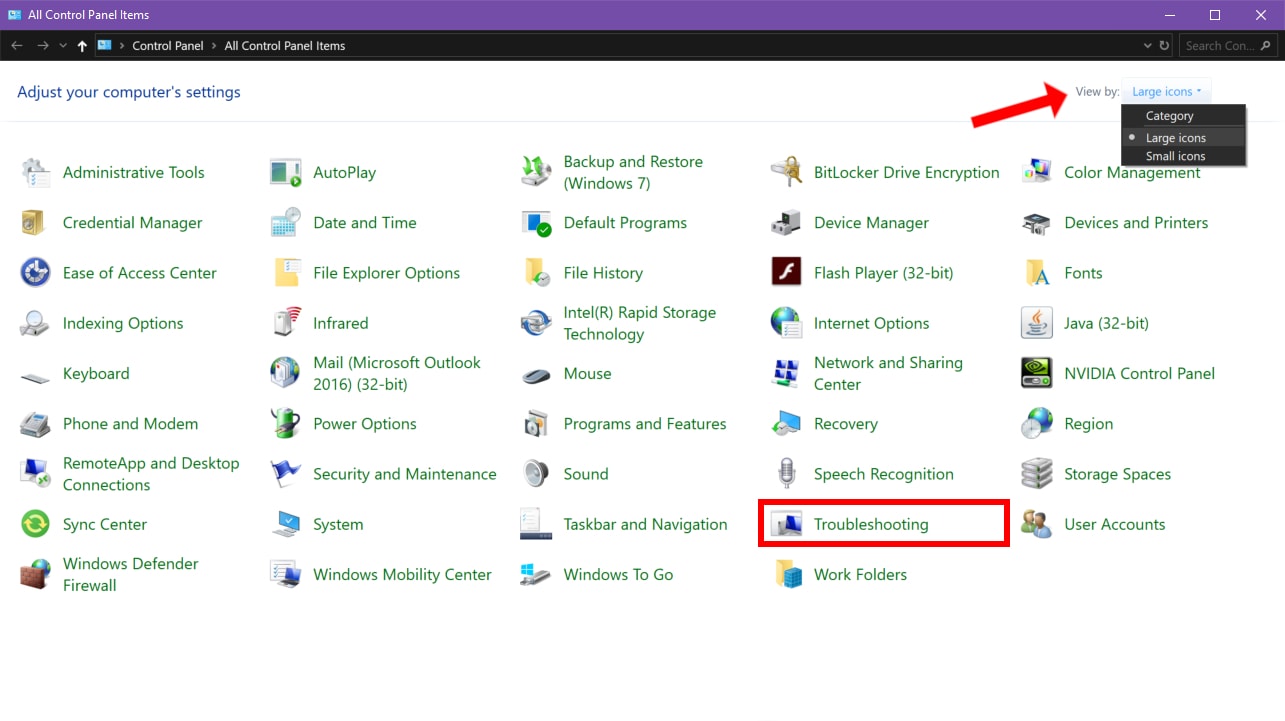
3.ClickView byin the top-right corner and selectLarge Icons.4.SelectTroubleshooting.

5.Click theView alllink listed on the left.
6.ClickWindows Updateat the bottom of the list.7.ClickAdvancedin the pop-up window.8.CheckApply repairs automatically.9.ClickNext.10.Allow the tool to diagnose the problem andfollow the instructions.
Related:How to use the Mail app in Windows 10 to access Gmail, iCloud, and more

Use the downloadable troubleshooter
1.DownloadMicrosoft’s Windows Update Troubleshooter here. The file should readwu10.diagcab.2.Launch the tool and clickAdvanced.
3.CheckApply repairs automatically.4.ClickRun as administrator.5.ClickNext.6.Allow the tool to diagnose the problem andfollow the instructions.

Confirm Windows Update services are running
1.Hold down theWindows keyand press the“R” key.2.Type services.mscand clickOK(or hit Enter) in the Run pop-up box.
3.Scroll down toWindows Update.4. Right-clickon the service and selectProperties.

5.SetStartup typeasAutomaticon the pop-up window.6.If theService statusreadsStopped, click theStartbutton.7.ClickApplyandOK.
8.LocateBackground Intelligent Transfer Service.9. Right-clickon the service and selectProperties.
10.SetStartup typeasAutomaticon the pop-up window.11.If the Service status readsStopped, click theStartbutton.12.ClickApplyandOK.
13.LocateCryptographic Services.14. Right-clickon the service and selectProperties.
15.SetStartup typeasAutomaticon the pop-up window.16.If the Service status readsStopped, click theStartbutton.17.ClickApplyandOK.18. ClosetheServicesutility.19. Restartyour PC.
Related:How to enable dark mode in windows 10, Office, and Microsoft Edge
Change your DNS
You could be experiencing problem with your internet service provider (ISP) and its Domain Name System (DNS) servers. DNS translates names like androidauthority.com into numeric web addresses in a shared directory used by servers across the globe. Your ISP’s DNS servers may have ongoing technical issues, are outdated with old DNS information, or overloaded with traffic. Here we’ll bypass your ISP and use the DNS servers maintained by Google.
1.TypeControl Panelin Cortana’s search field on the taskbar.2. Click the Control Panel desktop appin the results.
3.SelectNetwork and Internet(Category view) in the following window.
4.SelectNetwork and Sharing Center.
5.Next, clickChange adapter settingslisted on the left.
6.Select your network connection.7. Right-clickand selectProperties.
8.SelectInternet Protocol Version 4 (TCP/IPv4)and click thePropertiesbutton.9.EnableUse the following DNS server addresses.10.ForPreferred DNS server, enter8.8.8.8.11.ForAlternate DNS server, enter8.8.4.4.12.ClickOK.
Related:How to use notifications in Windows 10
Temporarily disable automatic updates
Windows Update issues could stem from Microsoft. By disabling automatic updates, your Windows 10 PC will not retrieve updates for a specific number of days while Microsoft resolves its distribution problems. This is also a good way to prevent Windows 10 from automatically installing botched updates.
1.ClickStartand selectthe “gear” iconon the Start Menu. This opens theSettingsapp.
3.Click theAdvanced optionslink.
4.Toggle onPause updates. This will halt updates for 30 days.5.You candefer feature updates(October 2018 Update, etc.) for up to 365 days.6.You candefer quality updates(security patches, fixes) for up to 30 days.
Run the DISM and SFC commands
Short for Deployment Image Servicing and Management, the DISM tool scans and fixes issues related to the Windows 10 disc image, which typically resides on your PC in a hidden partition. Windows 10 uses the disc image to install or remove major components, and fix corrupted system files. Meanwhile, the System File Checker tool, or SFC, checks the integrity of the core components in Windows 10 and fixes any issues.
1.TypeCommand Promptin Cortana’s search field on the taskbar.2.Right-click on the resulting desktop app and selectRun as administratoron the menu.3.ClickYeson theUser Account Controlpop-up.
- Type the following command and pressEnter:
DISM /Online /Cleanup-Image /RestoreHealth
5.Type the following command and press enter:
sfc /scannow
6. CloseCommand Prompt.7. RunWindows Update.
Restart Wuauserv and related services
1.Type Command Promptin Cortana’s search field on the taskbar.2.Right-clickon the resulting desktop app and selectRun as administratoron the menu.3.ClickYeson theUser Account Controlpop-up.4.Typethe following commands individually:
5.Closethe Command Prompt.6.Restartyour computer.
Delete files from the Software Distribution directory
This is where Windows 10 temporarily stores files needed to install updates. Just as you sometimes need to clear a web browser’s cache to solve connection issues, corrupted files in this folder may spark Windows Update woes. Clearing out this cache forces Windows 10 to download and use fresh files.
1.Hold down theWindows keyand press the“R” key.2.Type services.mscand clickEnterin theRunpop-up box.
3.Scroll down to theWindows Updateservice.4. Right-clickon the service and selectStop.
5.LocateBackground Intelligent Transfer Service.6. Right-clickon the service and selectStop.
7.OpenFile Explorer, but do not close theServiceswindow.8. Double-click on your primary driveto access its contents.9.Double-click theWindows folderto open.10.Scroll down to theSoftwareDistributionfolder.11. Right-clickon the folder and selectDelete. If you feel uneasy about deleting this folder, open it and delete its contents instead.12.Return to theServiceswindow andrestarttheBackground Intelligent Transfer ServiceandWindows Updateservices.
Use a restore point
Windows 10 typically creates a restore point before any update. This feature enables you to send the troubled PC back into time before whatever update, driver, or program was installed that’s currently breaking Windows Update.
1.TypeCreate a restore pointin Cortana’s search field on the taskbar.2.Select theCreate a restore point (Control Panel)result.
3.Click theSystem Restorebutton.
4.ClickNextin the pop-up window.
5.Select arestore point.6.Click theScan for affected programsbutton to see what programs, apps, and drivers will be affected by the change.7.Click theClosebutton when the scan concludes.8.Click theNextbutton.9.Click theFinishbutton.
Reset your PC
This method returns your Windows 10 PC back to its original out-of-the-box state though you can choose to keep your files.
1.ClickStartand then click onthe “gear” iconon the left side of the Start Menu. This opens the Settings app.
2.Once the app loads, selectUpdate & Security.
3.SelectRecoveryon the left.4.Click on theGet started buttonunderReset this PC.
5.Choose tokeep your filesorremove everything. The process to reset the PC will automatically begin.
That concludes our guide on what you should do when Windows Update isn’t working. For additional Windows 10 tips, check out these guides:
Thank you for being part of our community. Read ourComment Policybefore posting.
